
Excel to video tool for sales
What "Excel to Video" Means Excel to video is a simple idea: take a spreadsheet full of contacts and turn each row into its own personalized video. One recording becomes hundreds of tailored clips, e…
What "Excel to Video" Means
Excel to video is a simple idea: take a spreadsheet full of contacts and turn each row into its own personalized video. One recording becomes hundreds of tailored clips, each addressing a specific person by name, company, or offer.
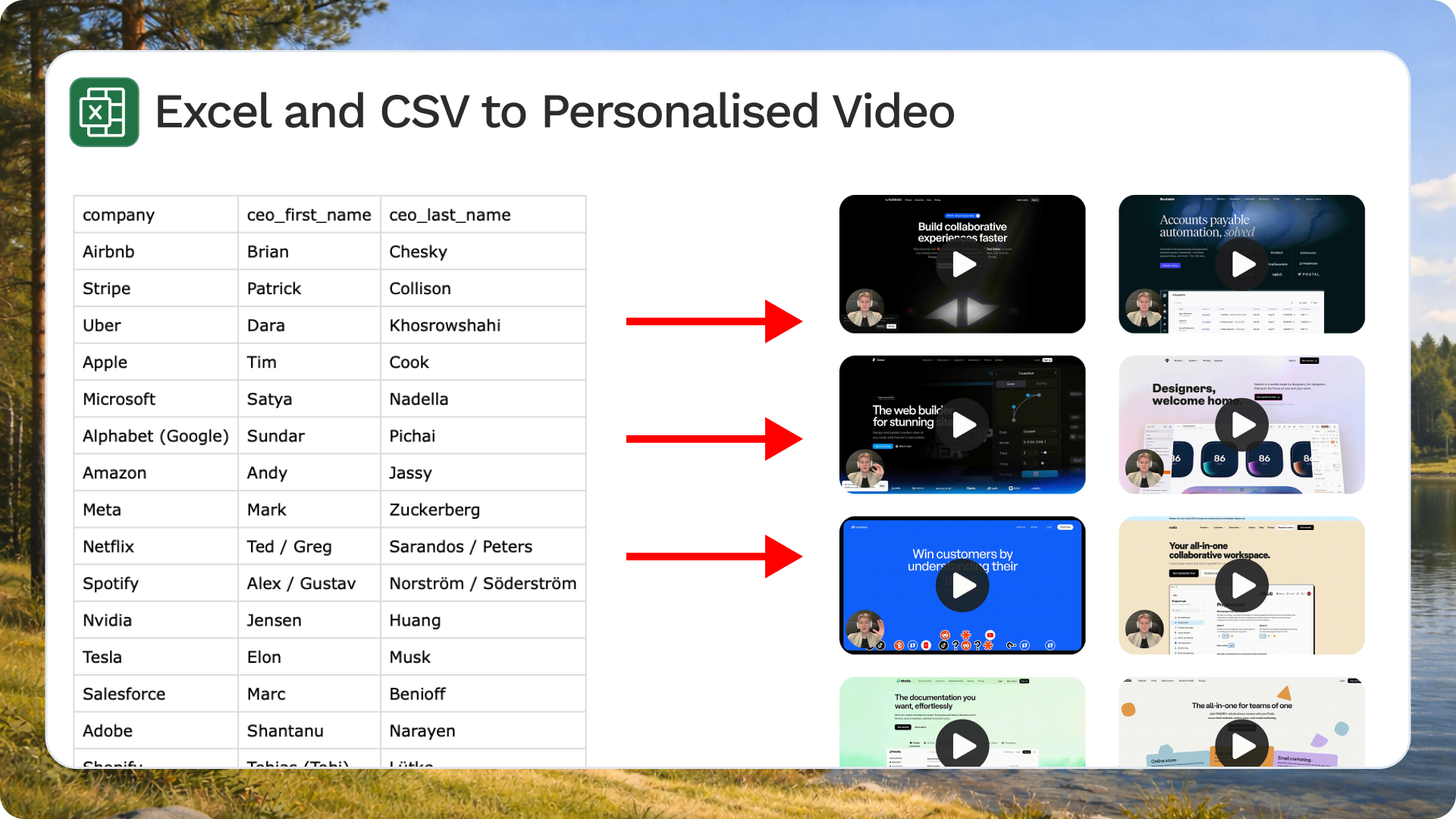
You record once. The data does the rest. That is the whole promise of excel2video.
Why Sales Teams Need excel2video
Most video sales letters (VSLs) fail for one reason: they are generic. When every prospect gets the same clip that says "Hi there," it feels like a broadcast, not a conversation. People can tell in two seconds whether a message was made for them.
The manual fix is worse. Recording a fresh video for every lead does not scale past a handful per day. So teams give up and send the same file to everyone, and reply rates stay flat.
excel2video solves both problems. You keep the personal feel of a one-to-one video while sending at the volume a real pipeline needs.
How Mailmoo Turns a Spreadsheet Into Videos
MailMoo takes your contact list and merges it into a video template. Each recipient's details drop into the right spots automatically, so the final clip looks and sounds like it was made just for them.
The workflow has two main steps: upload your file, then generate the videos.
Upload Your Excel File
Start with your Excel or CSV file. It already holds the columns you need: first name, company, industry, maybe the specific offer you want to mention.
Inside MailMoo you map those columns to video fields. The "company" column feeds the on-screen company name. The "first name" column feeds the spoken greeting. Once mapped, MailMoo knows exactly what to swap in for each row.
Generate Personalized Videos
Record your base video once. MailMoo's engine then produces a unique version for every contact, swapping in each person's details as it goes.

The details can go beyond text on screen. Audio variables let the video actually say each recipient's name and company out loud, so the personalization carries through the whole clip.
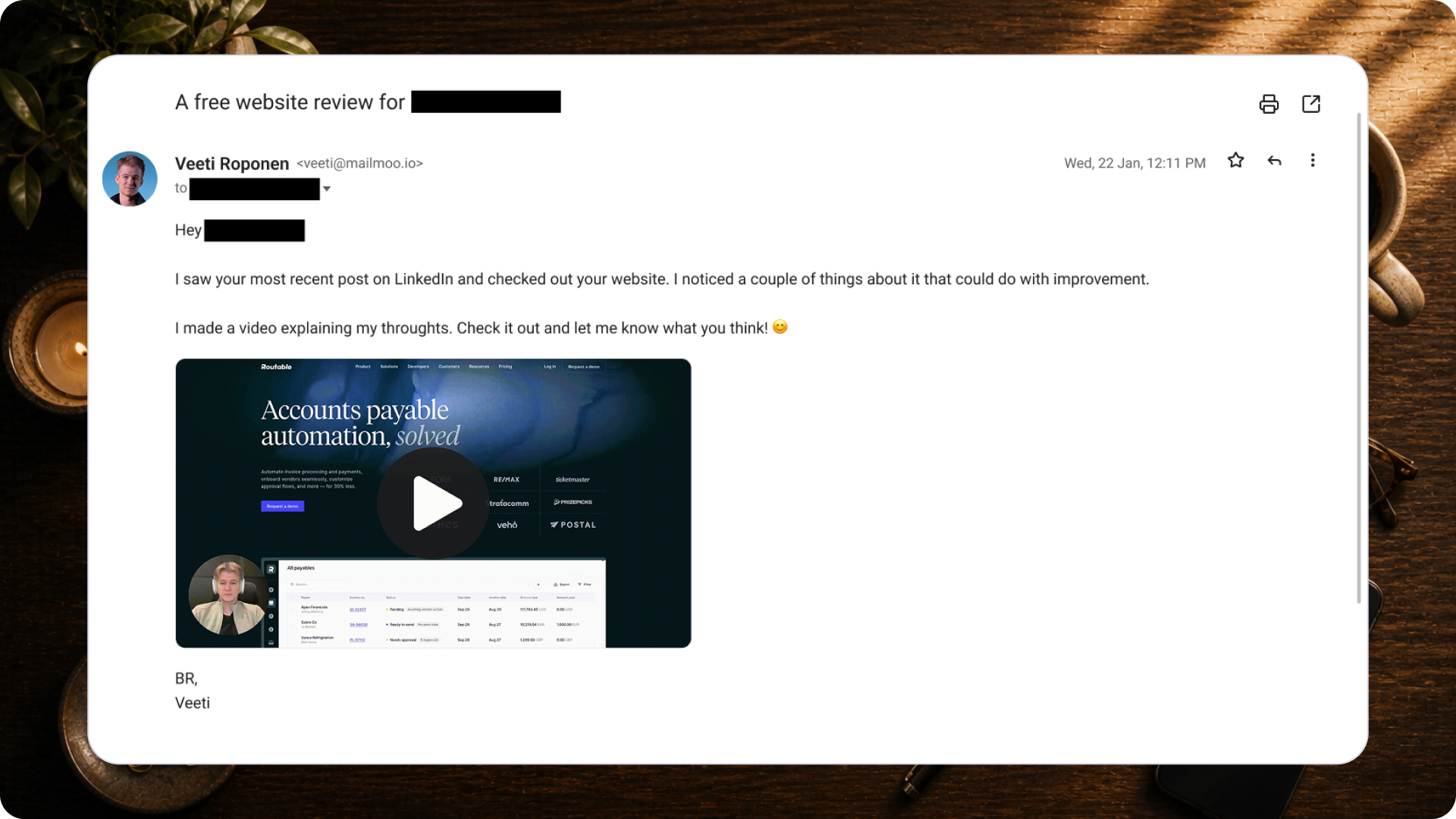
Here is what one of these videos looks like when it lands in a prospect's inbox:
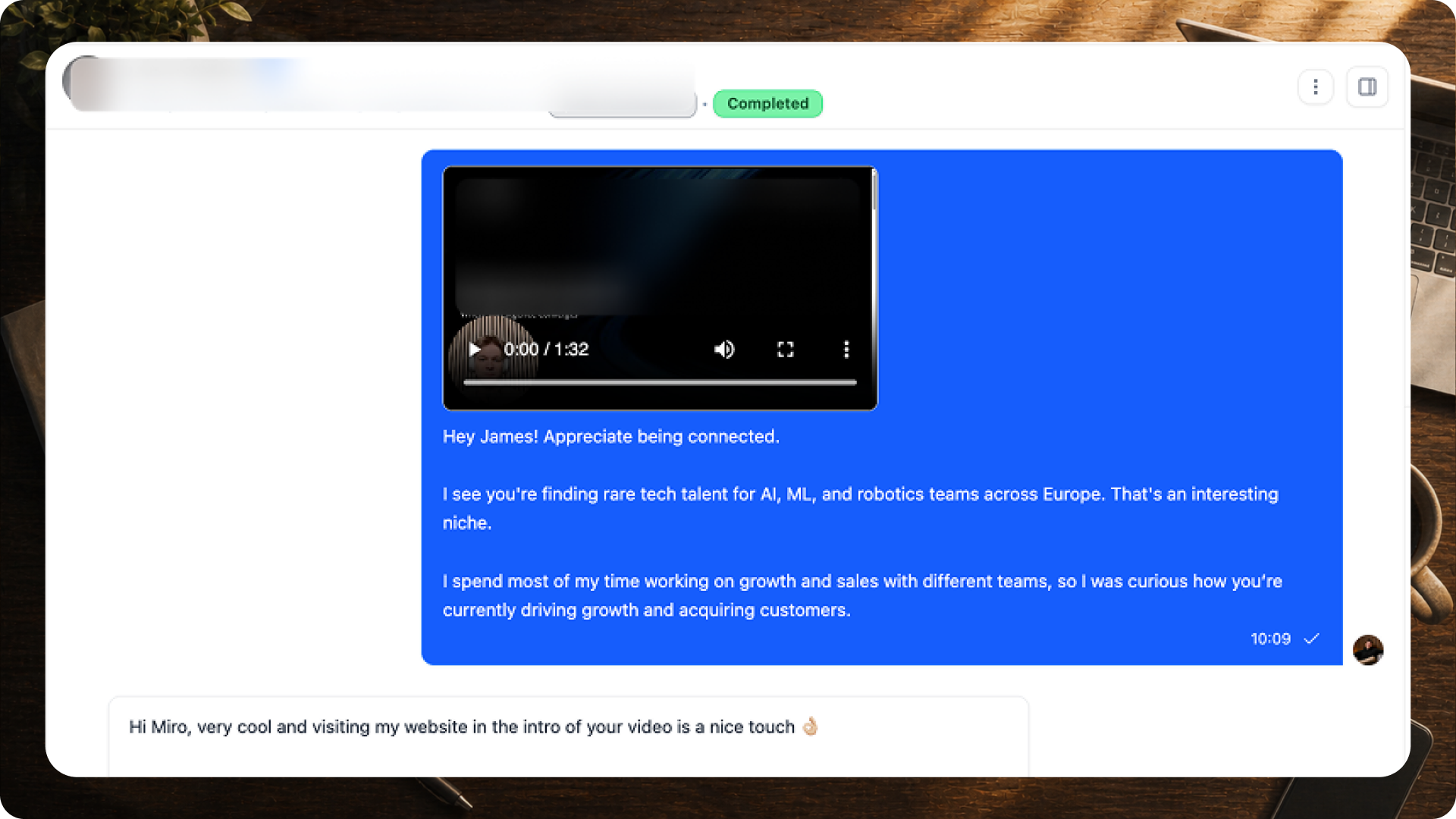
The same approach works on LinkedIn, where a personal video attachment stands out from plain text messages:
Building the Full Sales Experience
A single clip is a strong start. But a good VSL usually needs more room to make its case. MailMoo lets you go past one video and build a complete pitch around each prospect.

You get three building blocks: personalized videos, slideshow videos, and landing pages. Each one pulls from the same spreadsheet data.
Slideshow Videos
Slideshows turn your VSL into a structured, on-brand walkthrough. Instead of one talking-head clip, you get labeled slides that lead the prospect through the problem, the proof, and the outcome.

Notice the slide title fills in the industry and company from your data. Every deck stays consistent, but the words match the person watching.
Personalized Landing Pages
Pair each video with its own landing page. The prospect clicks through to a page built for them, with the video front and center and a clear next step, like booking a meeting.
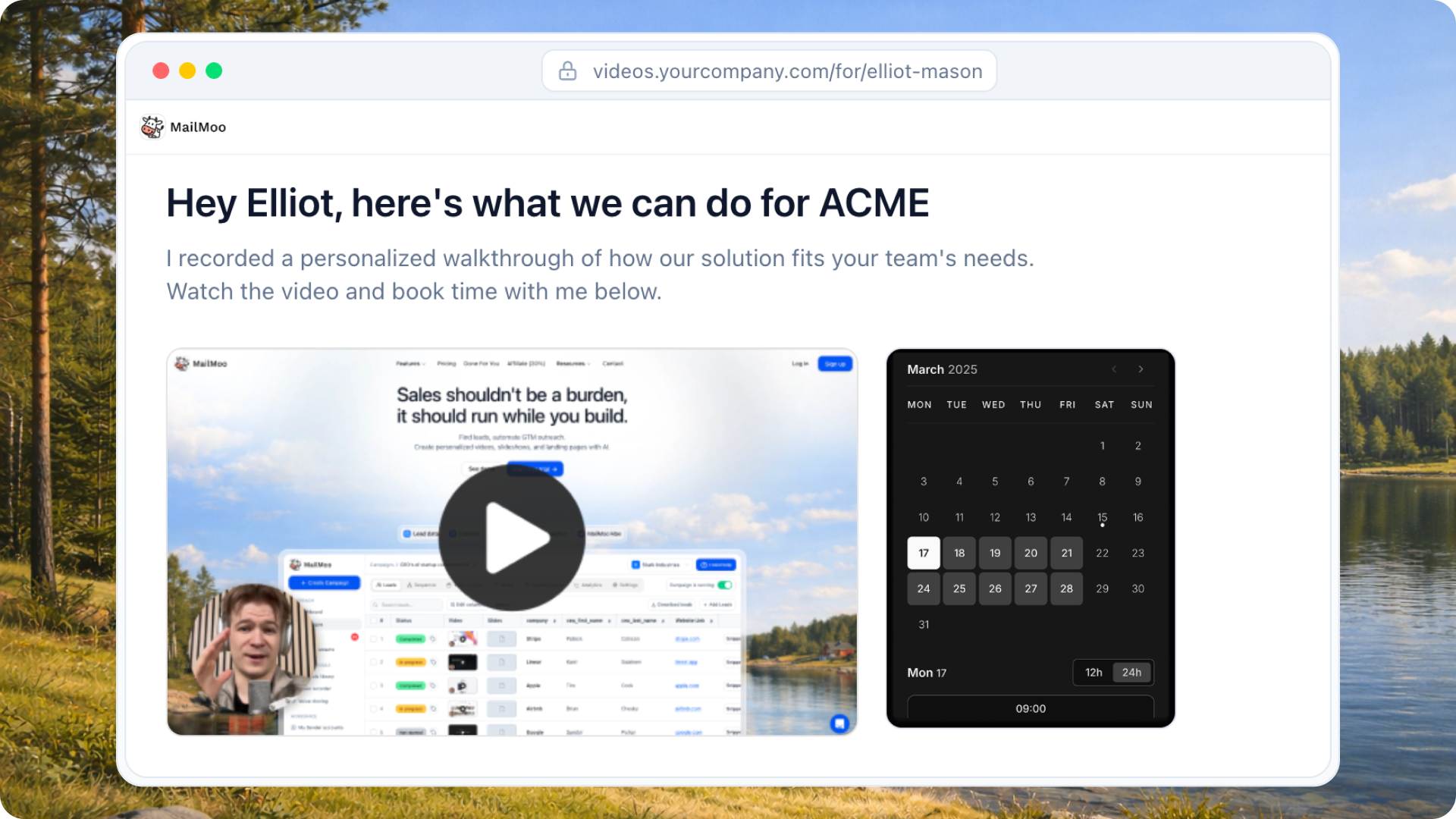
A page like this feels like a proper pitch, not a cold email attachment. That small shift in framing makes prospects more likely to watch and reply.
Getting Started With Excel to Video
The path is short:
- Prepare your Excel or CSV file with columns like name, company, and offer.
- Upload it to MailMoo and map the columns to video fields.
- Record your base video once.
- Generate personalized videos, and add slideshows or landing pages if you want the full experience.
The takeaway is simple. Personalization used to force a trade-off between quality and volume. excel2video removes that trade-off. You send videos that feel one-to-one, at the scale of a spreadsheet, and let the data carry the personal touch for you.


